
Print a Test Page Online – Check Your Printer Quality Instantly
Is your printer skipping colors, producing blurry text, or leaving faint lines and streaks? A printer test page is a simple way to check your printer’s output and identify common print quality problems. With our free online test pages, you can print a test page for many common printers, including HP, Canon, Epson, Brother, and more.
Choose the type of test you need and print it from your browser to check your printer’s performance. Whether you need a color printer test page, black and white test page, CMYK test page, or a general print quality test, these printable test pages can help you check color output, black ink or toner coverage, fine lines, patterns, alignment, and overall print quality.
What Is a Printer Test Page?
A printer test page is a specially designed sheet used to check your printer’s print quality and identify common printing problems. It typically contains text, lines, shapes, gradients, color blocks, and other printer test patterns that make it easier to spot issues with the printed output.
Printing a test page is a useful way to:
- Check print quality – See whether text, lines, and graphics are sharp, clear, and consistent.
- Identify ink or toner problems – Look for missing, faded, uneven, or streaky areas that may indicate an ink, toner, or printhead issue.
- Check printer alignment – Use lines and patterns to identify misalignment, shifted lines, or uneven printing.
- Evaluate color output – Check whether cyan, magenta, yellow, black, and other colors are printing consistently.
- Find printing problems early – Detect streaks, blank areas, missing colors, and other issues before they affect important documents or photos.
Most modern printers, including HP, Canon, Epson, and Brother, offer built-in options for printing a printer test page or nozzle check. An online print test page gives you another convenient way to print a standardized test sheet directly from your browser and visually evaluate the results.
For more specific checks, you can use a color printer test page, black and white test page, CMYK test page, or printer alignment test page depending on the problem you want to investigate.
Printer Test Pages
Choose from our collection of free printer test pages designed to help you check print quality, ink or toner output, alignment, and color performance. Select the test page that matches what you want to check, then print it on your printer. Each test page is designed for a specific purpose, from checking black ink and grayscale output to testing individual colors and full-color printing.
Black & White Test Pages
Black & White Test Page
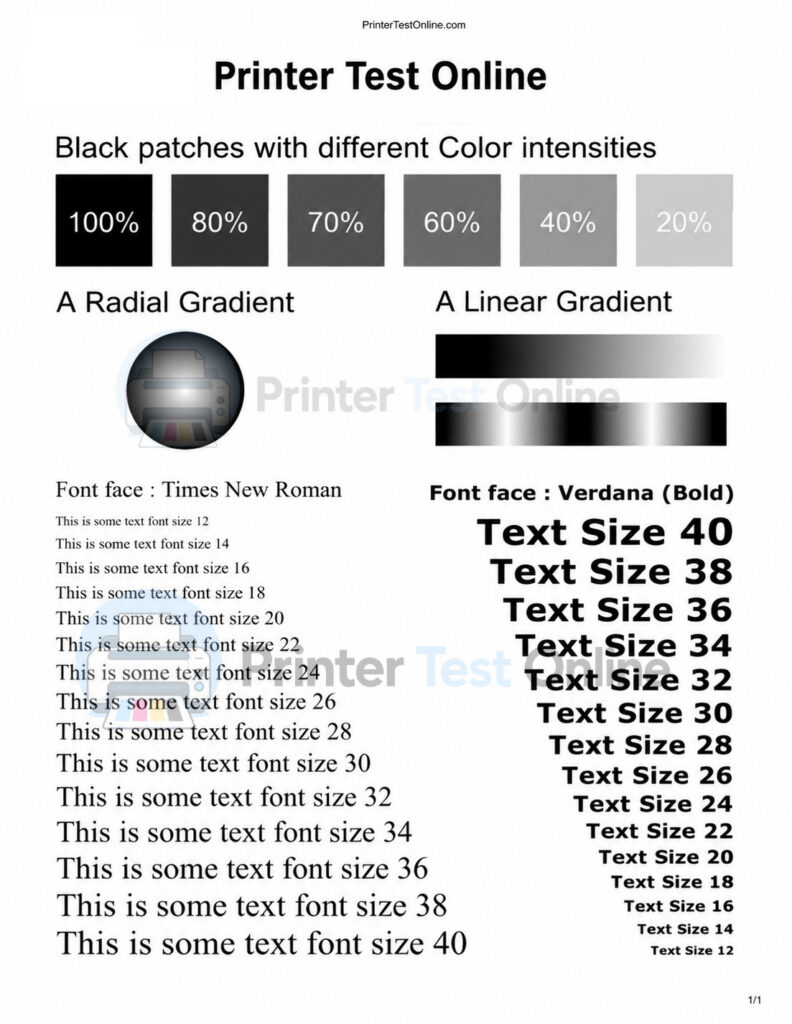
B&W Test Page: Checks text sharpness, contrast, toner density, and overall printer print clarity.
All Black Print Test Page
Grayscale Print Test Page
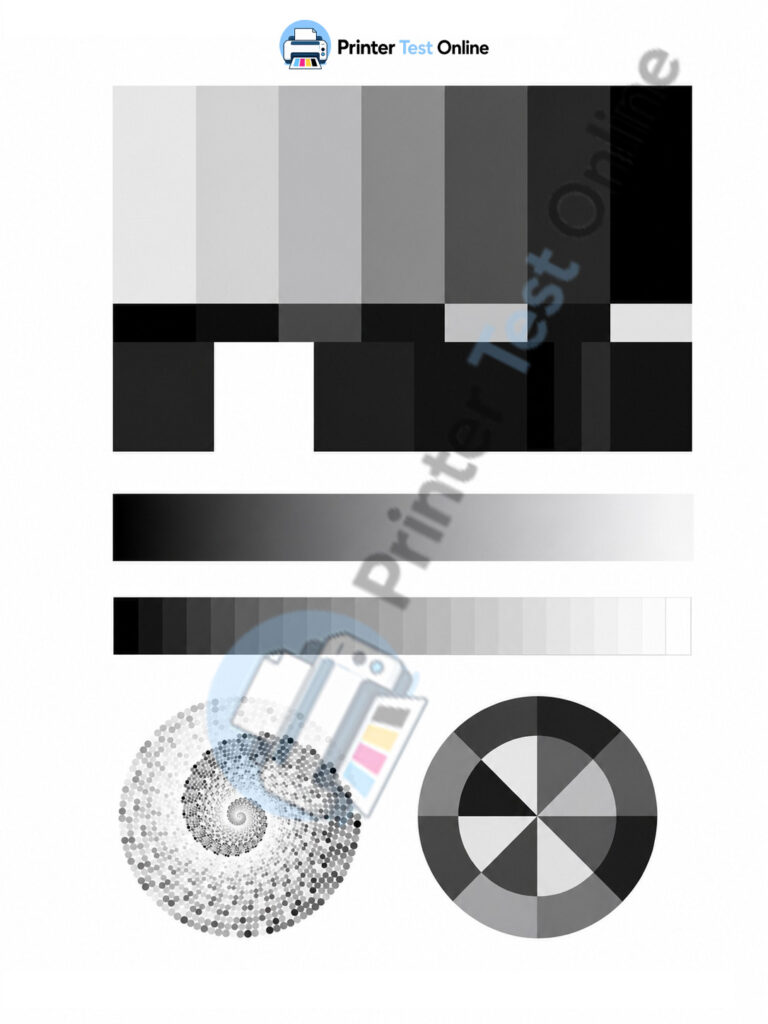
Monochrome Print Test Page: Evaluates black-to-gray transitions, grayscale accuracy, and smooth tonal variation in printed output.
Color Test Pages
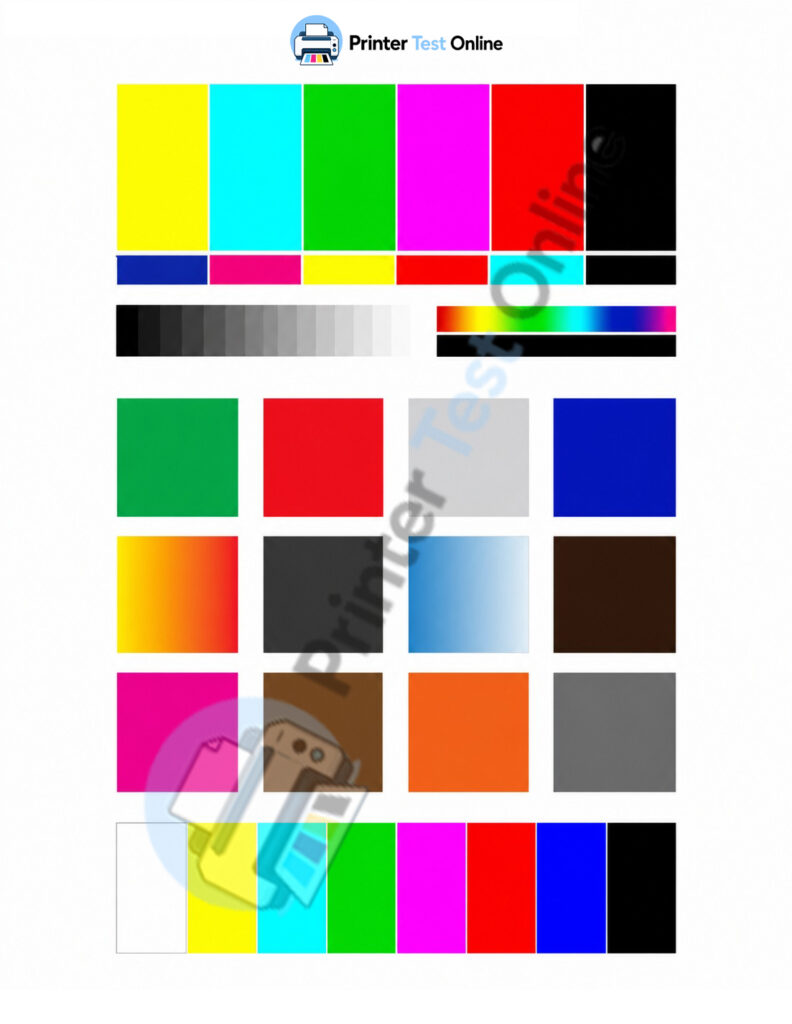
Color Print Test Page
Full Color Test Print: Assesses color accuracy, vibrancy, and overall color output across your printer’s full color range.
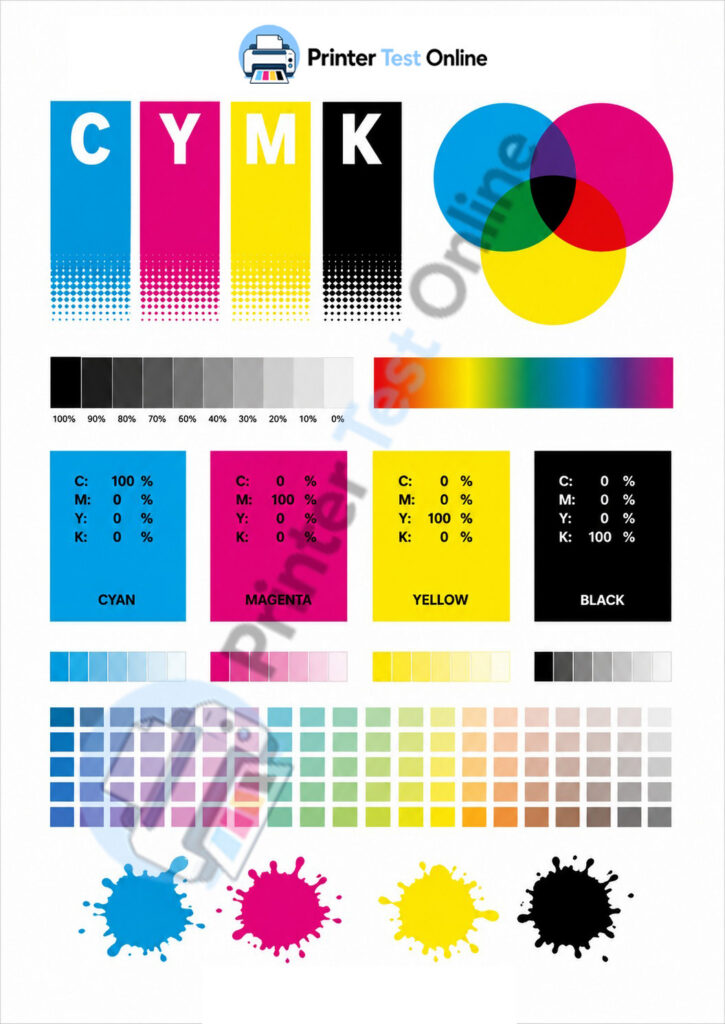
CMYK Print Test Page
CMYK Test Print: Evaluates cyan, magenta, yellow, and black ink coverage to identify missing colors, weak output, and print inconsistencies.
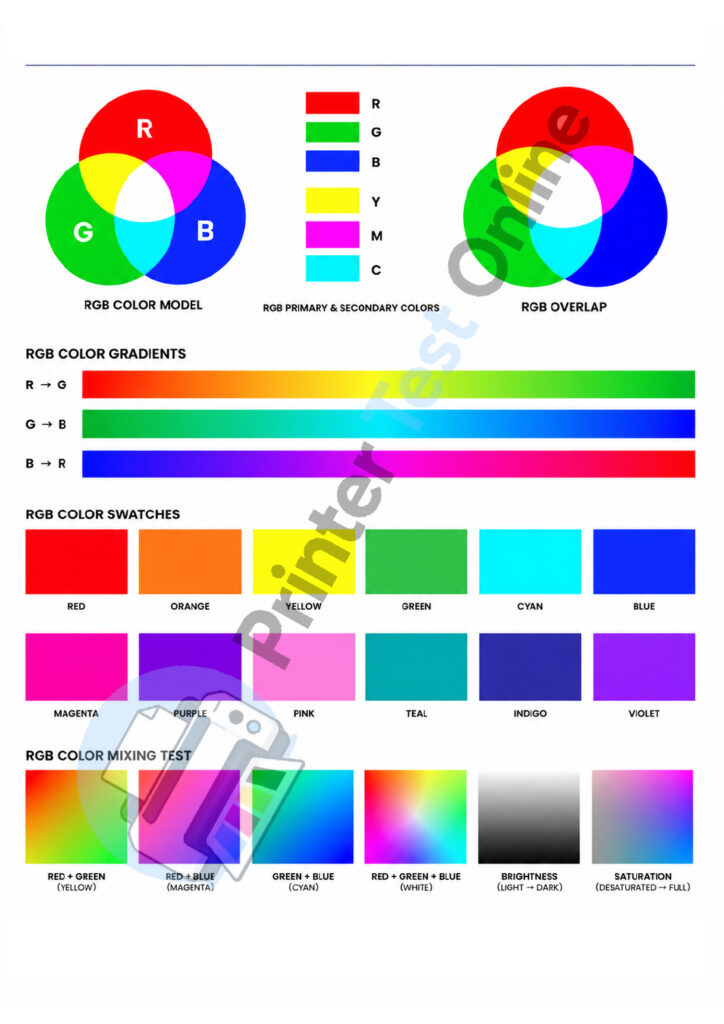
RGB Print Test Page
RGB Color Test Page: Evaluates red, green, and blue color balance to assess color accuracy and photo print quality.
Individual Color Test Pages
Cyan Test Page
Cyan Printer Test Page: Checks cyan color accuracy, shade consistency, and ink coverage to identify weak or faded cyan output.
Magenta Test Page
Magenta Printer Test Page: Evaluates magenta color intensity, ink coverage, and shade accuracy to identify faded or uneven prints.
Yellow Test Page
Yellow Printer Test Page: Assesses yellow color intensity, ink coverage, and shade consistency to detect faded or uneven yellow prints.
Blue Color Test Page
Blue Printer Test Page: Evaluates blue color intensity, shade depth, and print consistency to identify faded or uneven blue output.
Red Color Test Page
Red Printer Test Page: Evaluates red color intensity, tone richness, and print clarity to identify faded or inconsistent red output.
Green Color Test Page
Check your printer’s green output with this green printer test page for balanced tones.
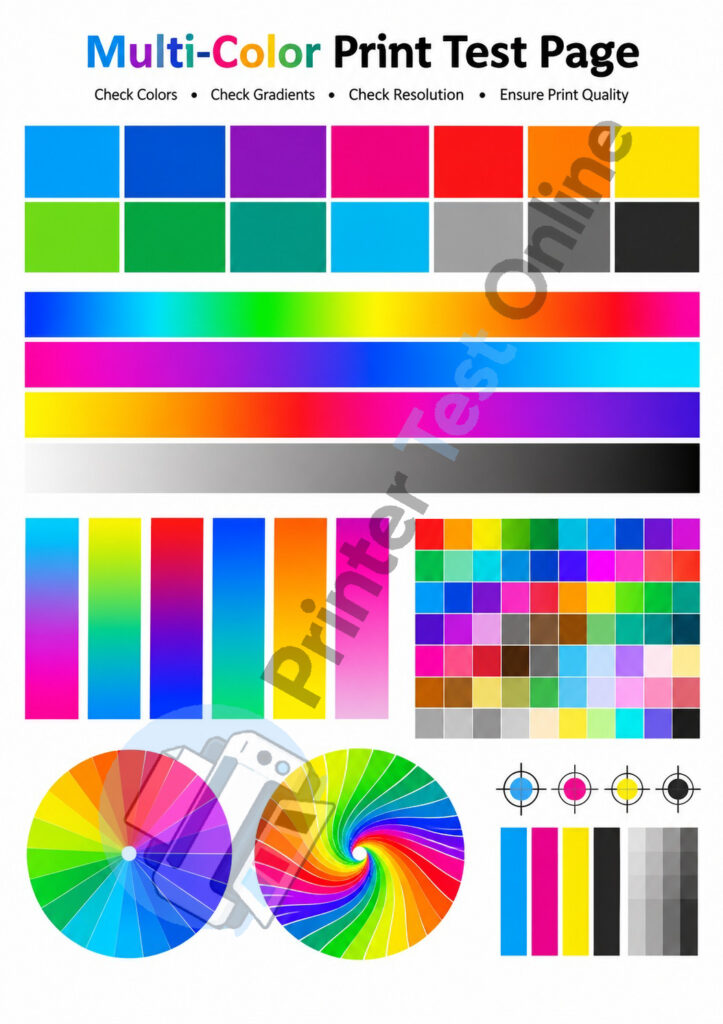
Multi-Color Print Test Page
Rainbow Print Test Page: Displays multiple colors side by side to evaluate color blending, saturation, and overall print consistency.
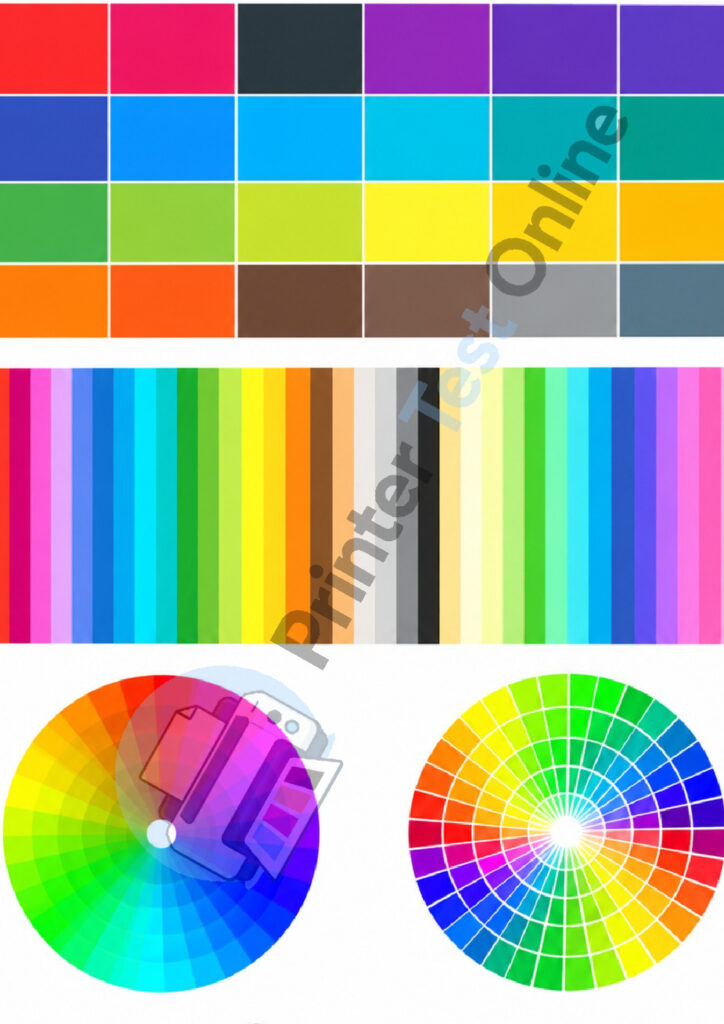
Color Palette Test Page
Color Wheel Test Page: Displays a range of color shades to evaluate calibration accuracy, hue transitions, and color reproduction consistency.
Image & Photo Test Pages

High-Resolution Color Test Image
High Resolution Test Print: Evaluates maximum print resolution, fine detail reproduction, and image sharpness to identify clarity issues.
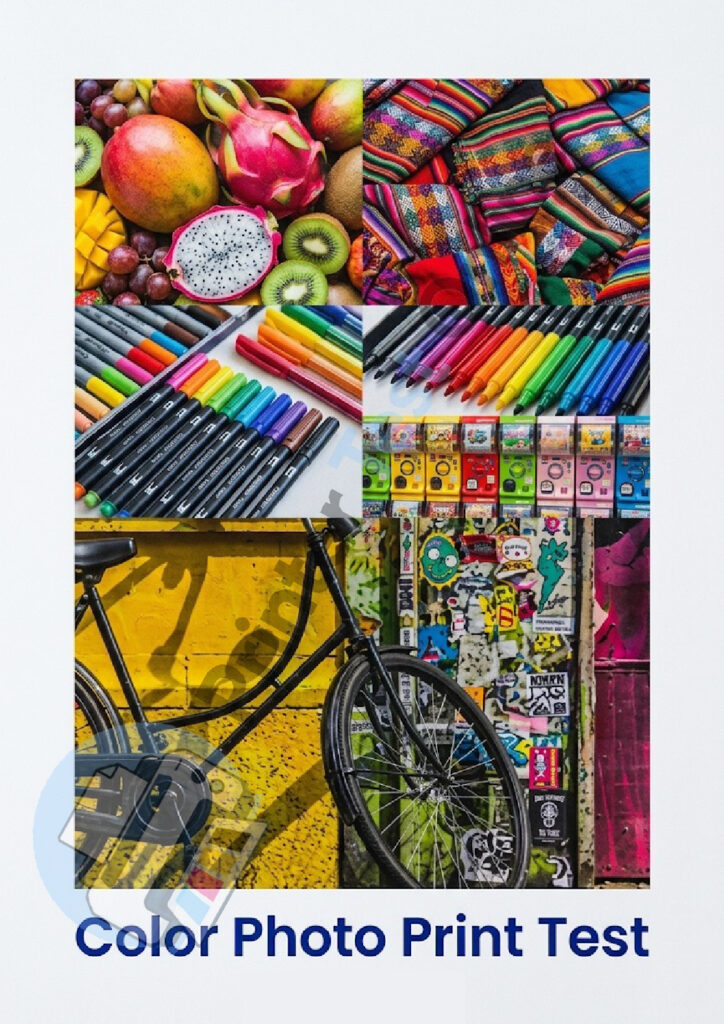
Color Photo Print Test
Photo Print Test Page: Evaluates skin tones, color gradients, and shadow details to assess photo reproduction quality and image clarity.
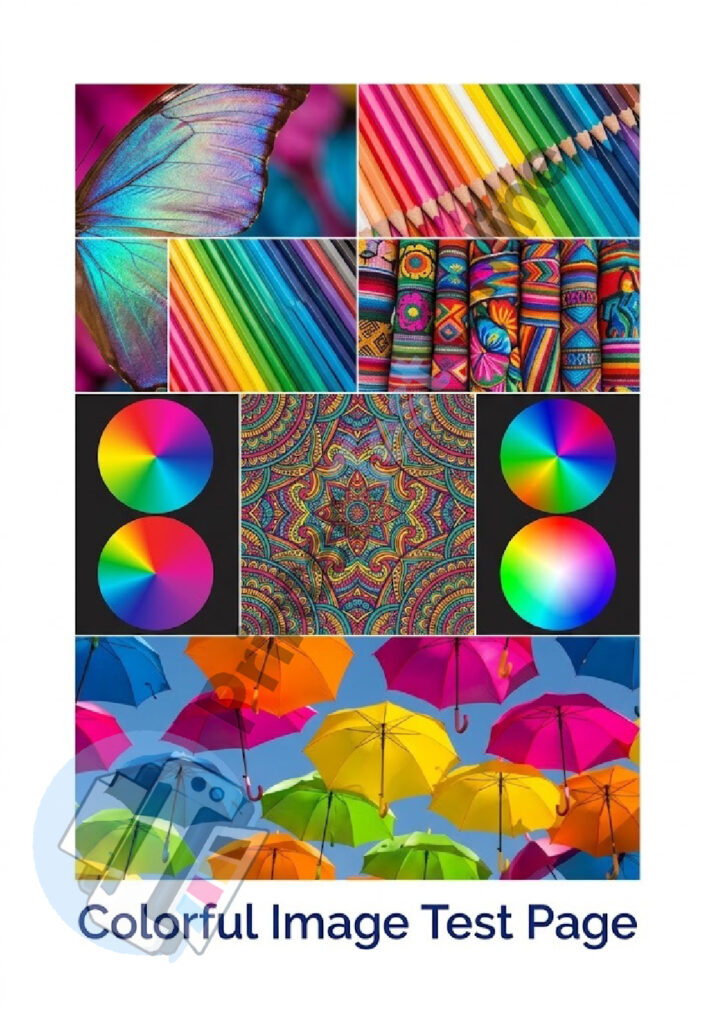
Colorful Image Test Page
Colorful Image Test Page: Uses vibrant colors to evaluate ink blending, contrast levels, and overall color reproduction quality.
Alignment & Calibration Pages
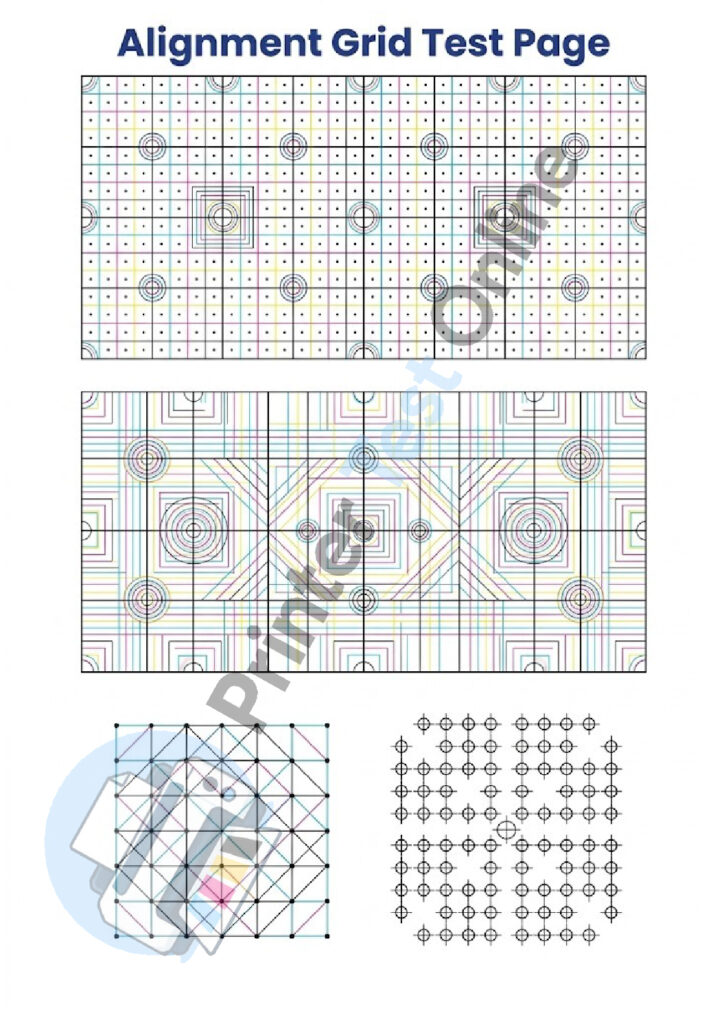
Alignment Grid Test Page
Print Alignment Test Page: Identifies skewed lines, uneven spacing, and misaligned printheads to help improve printing accuracy.
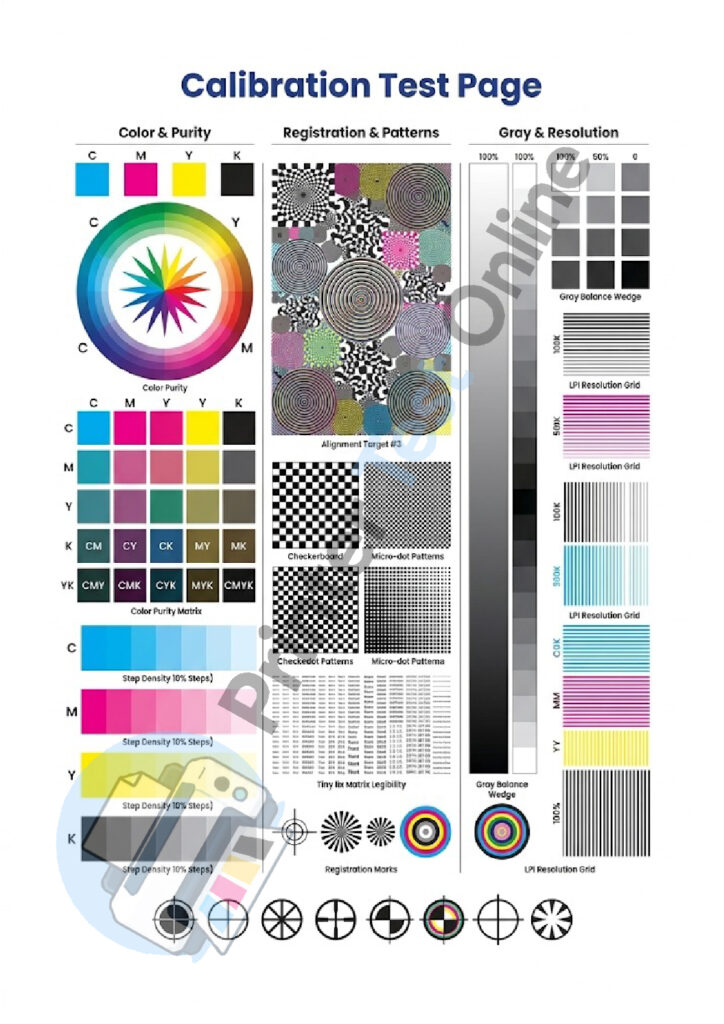
Calibration Test Page
CMYK & Multi-Color Test Page: Evaluates color accuracy, ink blending, and calibration consistency across multiple color combinations.
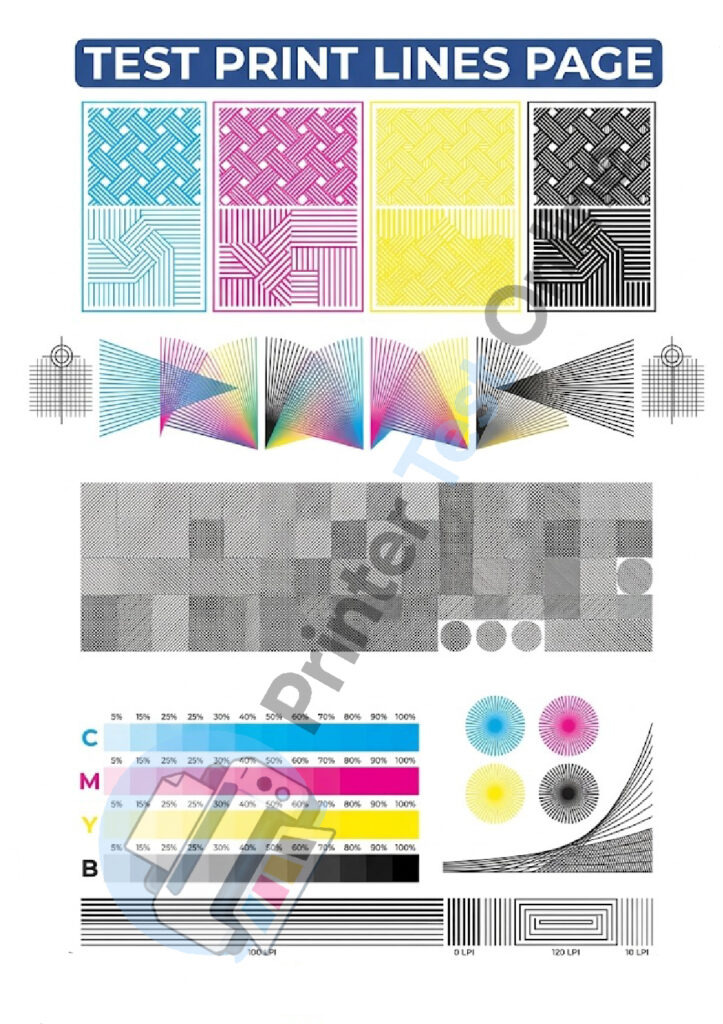
Test Print Lines Page
Line Test Page: Displays fine horizontal and vertical lines to detect print banding, alignment errors, and inconsistent line quality.
General Test Pages
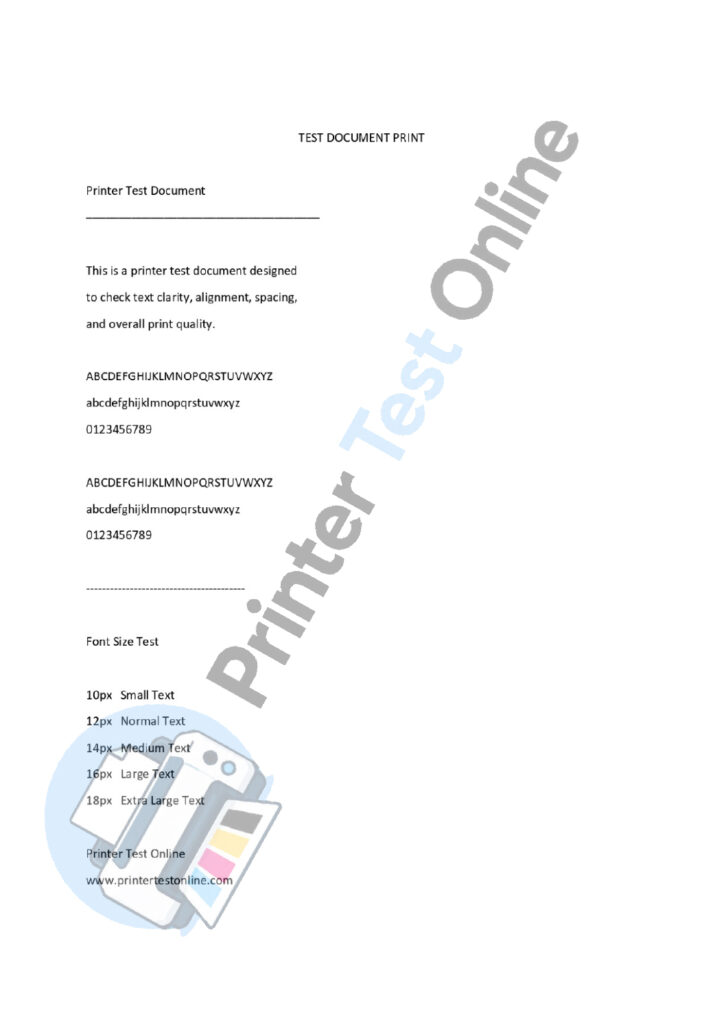
Document Test Page
Lorem Ipsum Test Page: Evaluates text readability, line spacing, and alignment to identify formatting issues in printed documents.
Blank Page Test Print
Blank Page Test: Prints an empty page to check paper feeding, detect feed issues, and verify printer connectivity.
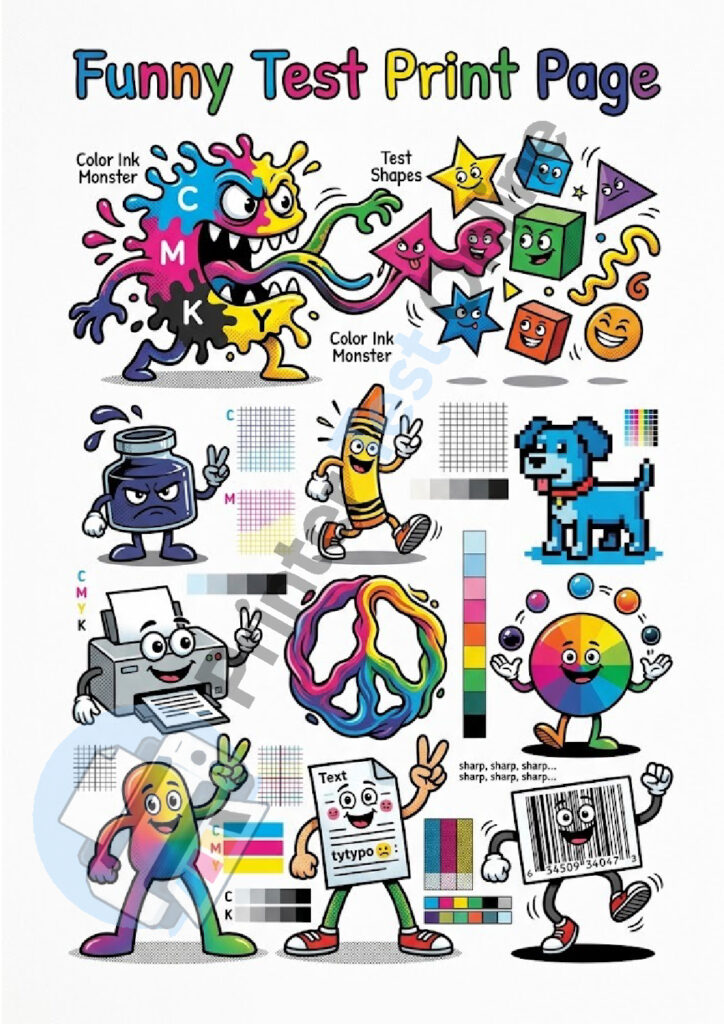
Funny Test Print Page
Funny Test Print Page: Combines playful designs with color patterns to check print quality while helping reduce unnecessary ink usage.
Specialized Printer Test Pages
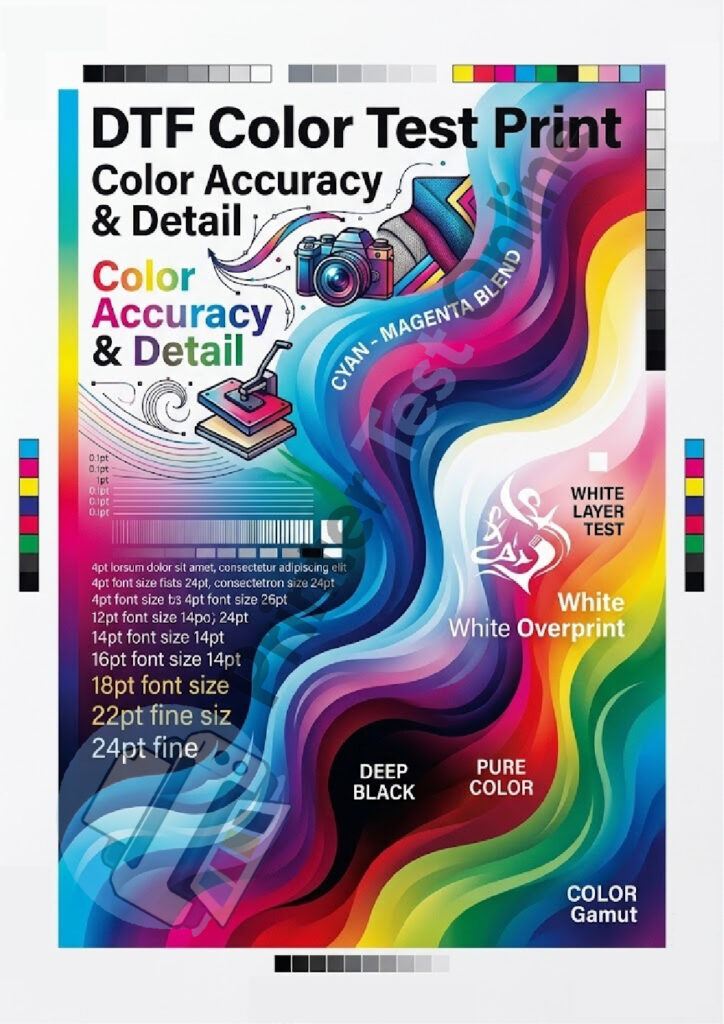
DTF Color Test Print
DTF Color Test Print: Evaluates transfer color accuracy, ink coverage, and print consistency for Direct-to-Film (DTF) printers.
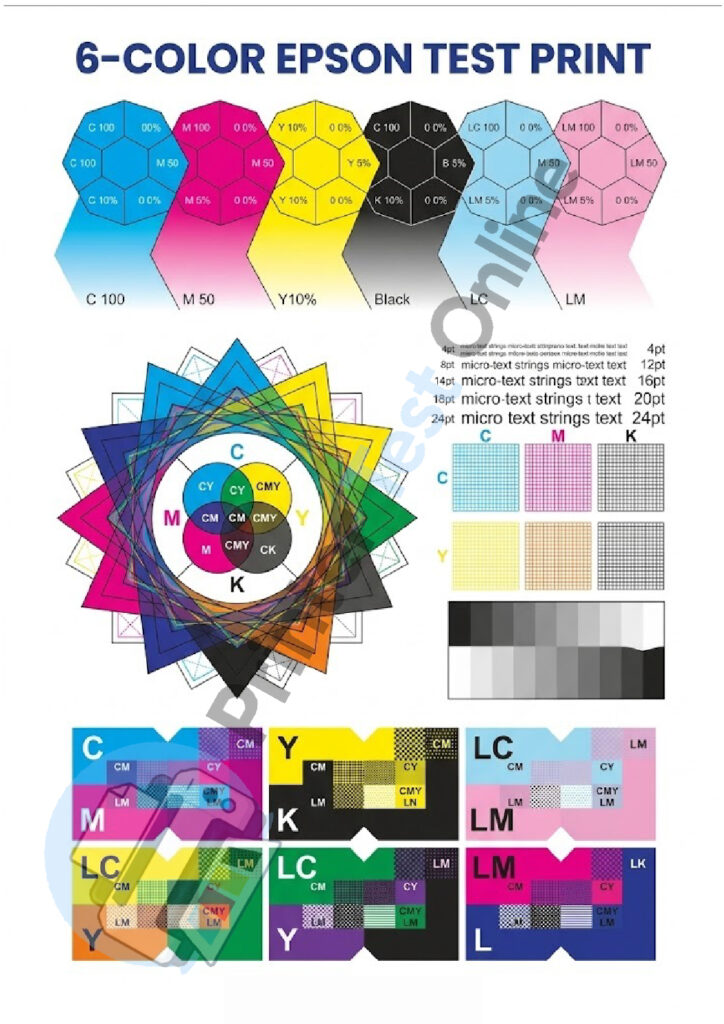
6-Color Epson Test Print
Epson 6-Color Test Print: Evaluates CMYK, light cyan, and light magenta output to check color accuracy and smooth photo gradients on Epson photo printers.
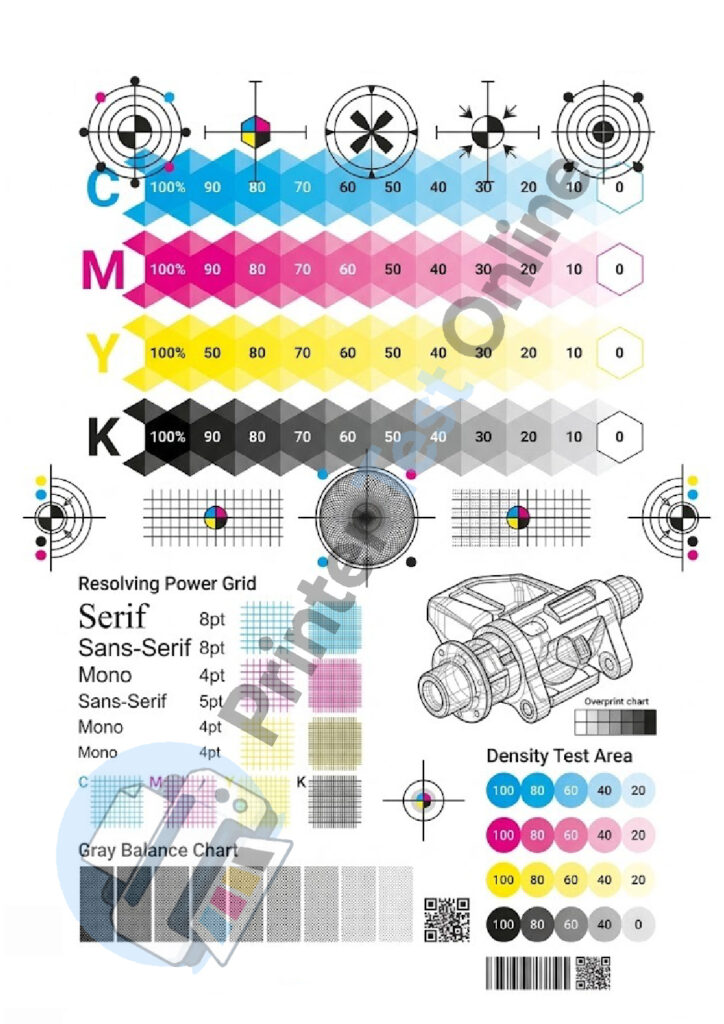
Laser Printer Test Page
Laser Printer Test Page: Uses high-contrast black text and detailed patterns to evaluate print sharpness, toner distribution, and text clarity.

Pantone Test Print
Pantone Test Print: Assesses precise Pantone shade matching, color accuracy, and consistency for professional printing requirements.
Paper Size Test Pages
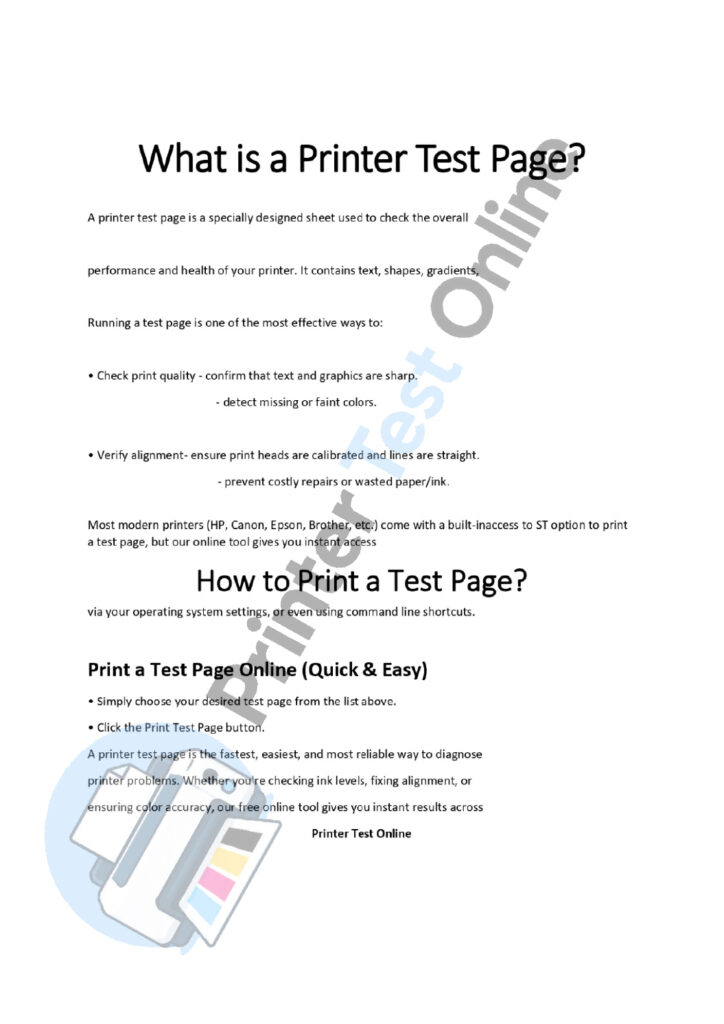
A4 Test Print
A4 Test Print: Uses the standard A4 paper size to check print quality, alignment, and compatibility with everyday printing needs.
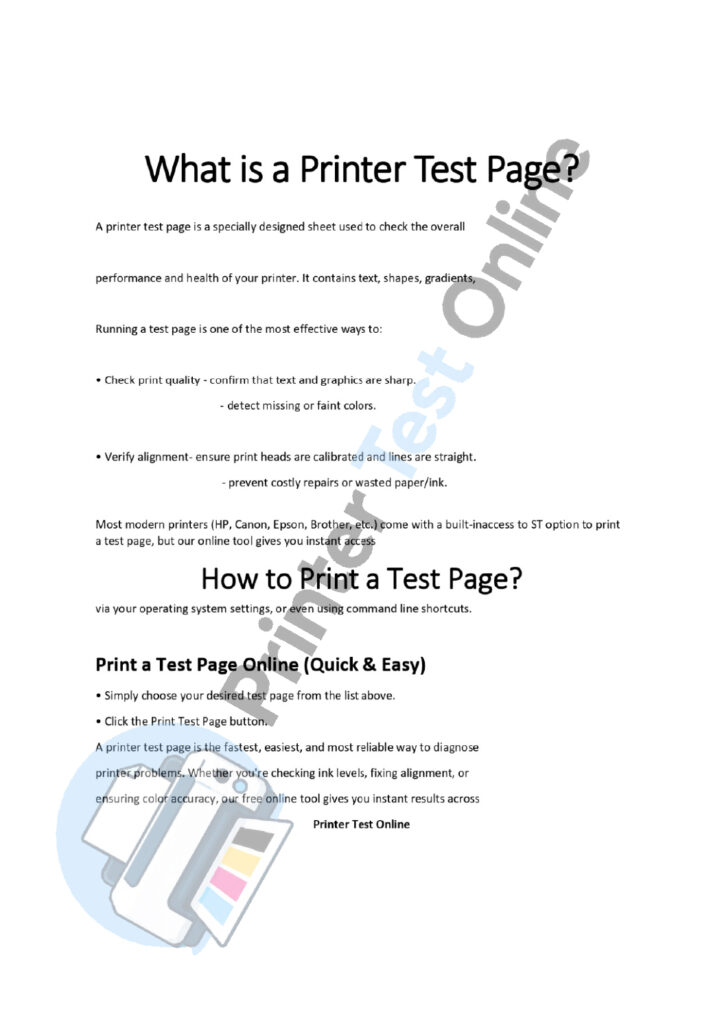
A5 Test Print
A5 Test Print: Uses compact A5 paper to check print clarity, alignment, and quality for smaller-format documents.
A3 Test Print
A3 Test Print: Uses large-format A3 paper to evaluate print quality, alignment, and detail clarity on compatible printers.
How to Print a Test Page?
You can print a printer test page online directly from your browser or use your printer’s built-in test function through your operating system. The browser method is usually the quickest option when you want to print one of our online test pages.
Print a Test Page Online
The easiest way to use an online print test page is through your browser:
- Choose a test page from the list above, such as a black and white test page, color test page, or CMYK test page.
- Open the test page you want to print.
- Click the Print Test Page button.
- Your browser’s print dialog will open.
- Select your printer and check the paper size and print settings.
- Click Print to start printing.
For a basic printer test, you can usually use standard printer paper and your normal print settings. If you are testing color or photo output, make sure the selected paper type and print settings match the paper you are using.
How to Print a Test Page on Windows?
You can print a test page from Windows printer settings. The exact menu names may vary slightly between Windows versions.
Windows 11 and Windows 10
- Open Settings.
- Go to Bluetooth & devices → Printers & scanners.
- Select your printer.
- Open Printer properties.
- Look for the Print Test Page option and select it.
Windows 8 and Windows 7
- Open Control Panel.
- Go to Devices and Printers.
- Right-click your printer and select Printer Properties.
- Select Print Test Page.
The available options can vary depending on your printer driver.
How to Print a Test Page on macOS
On newer versions of macOS, printer settings are managed through System Settings:
- Open the Apple menu and select System Settings.
- Select Printers & Scanners.
- Choose your printer.
- Open the available printer options or utility provided by the printer software.
- Use the printer’s test, nozzle check, or maintenance option if available.
The exact test-page option depends on the printer manufacturer and installed printer software. You can also open one of our printable test pages and press Command + P to print it directly from your browser.
How to Print a Test Page on Android
- Open the test page in your mobile browser.
- Tap the browser’s Share or Menu option.
- Select Print if available.
- Choose your connected or available printer.
- Select the appropriate paper size and print settings.
- Tap Print.
Print Test Page Command (Advanced)
If you prefer using the command line, Windows and Linux provide command-line methods for sending a test page to a printer. These options are mainly useful for advanced users and troubleshooting.
For Windows (CMD / PowerShell)
Windows supports the PrintUIEntry command with the /k parameter to print a test page to a specified printer.
rundll32 printui.dll,PrintUIEntry /k /n “Your-Printer-Name”
Replace Your-Printer-Name with the exact name of your installed printer.
Microsoft documents /k as the parameter for printing a test page, while /n specifies the printer name.
For Linux / Ubuntu (CUPS)
On Linux systems using CUPS, the lp command can be used to send a file to a printer.
lp -d printer_name /path/to/test-page
Replace printer_name with your printer’s name and /path/to/test-page with the location of the test page you want to print.
The exact command and available test files can vary depending on your Linux distribution and CUPS configuration.
How to Print a Test Page Without a Computer
Using the Printer's Control Panel
Menu → Setup → Maintenance → Print Test Page
Depending on the manufacturer and model, the option may have a different name, such as Print Quality Report, Printer Status Report, Nozzle Check, or Diagnostic Page.
The exact steps vary by printer model, so check your printer’s manual or manufacturer’s support documentation when the option is not obvious.
Printers Without a Screen
Some printers without a display use physical buttons to access maintenance or diagnostic functions. However, the button combination can vary significantly between models, even within the same printer brand. For this reason, it is better to check the manual for your exact printer model rather than using a universal button sequence.
Depending on the printer, the built-in function may print a:
- Test page
- Print quality report
- Nozzle check
- Status report
- Alignment page
- Diagnostic page
These pages can help you identify issues such as missing colors, uneven ink coverage, streaks, or alignment problems.
Networked or Wireless Printers
A Wi-Fi or Ethernet printer may provide a Network Configuration Page or Network Status Page through its control panel. This page is primarily used to check network information such as the connection status, IP address, and network settings.
A network status page should not be confused with a printer test page. If you want to evaluate print quality, use a dedicated color, black and white, grayscale, or other printer test page instead.
If the printer is connected to your network but does not print, checking both the network status and a printer test page can help narrow down the problem.
Common Printing Issues & Troubleshooting
Faded or Light Prints
- What you may see: Text or images look faint, black areas appear gray, or color blocks have weak coverage.
- Possible causes: Low ink or toner, clogged printhead nozzles, incorrect print settings, or a toner-related issue on laser printers.
- What to try: Check the ink or toner level, make sure the correct paper and print-quality settings are selected, and run the printer’s recommended cleaning or maintenance cycle if applicable.
Streaks or Missing Lines
- What you may see: Horizontal lines, vertical gaps, white streaks, or missing sections in text and color blocks.
- Possible causes: Clogged inkjet nozzles, dirty or worn components, low ink, or other printhead or toner-related problems.
- What to try: Print a nozzle check if your inkjet printer provides one. Follow the manufacturer’s cleaning procedure and repeat the test if necessary. For laser printers, check the toner and follow the recommended maintenance procedure for your model.
Wrong or Distorted Colors
- What you may see: Colors look noticeably different from the expected result, or one color is missing, weak, or uneven.
- Possible causes: Low or empty color cartridges, clogged nozzles, incorrect color settings, paper-type settings, or color-management differences.
- What to try: Print a CMYK test page or individual color test pages to determine which color channel may be affected. Check the cartridges and printer settings, then run the appropriate cleaning or maintenance procedure.
Misaligned or Blurry Text
- What you may see: Text appears doubled, lines are not straight, or printed elements look shifted or blurry.
- Possible causes: Printhead alignment problems, incorrect print settings, paper movement, or other mechanical issues.
- What to try: Print an alignment test page if your printer supports one. Follow the printer’s alignment procedure and make sure the paper is loaded correctly.
Paper Jams & Skewed Pages
- What you may see: Paper feeds at an angle, the printed content is shifted, or the page stops during printing.
- Possible causes: Incorrectly loaded paper, unsuitable or damaged paper, overloaded paper trays, or dirty or worn feed rollers.
- What to try: Remove the jam according to the printer’s instructions, reload the correct paper size, and check that the paper guides are positioned correctly. If the problem continues, inspect the feed path and follow the manufacturer’s maintenance instructions.
Printer Not Responding
- What you may see: The printer does not start printing, remains offline, or a print job stays in the queue.
- Possible causes: USB or Wi-Fi connection problems, incorrect printer selection, print spooler issues, driver problems, or printer errors.
- What to try: Check the printer’s status, verify the connection, restart the printer, and make sure the correct printer is selected. If the problem persists, check for available driver or firmware updates from the printer manufacturer.
Blank Pages Printing
- What you may see: The printer feeds paper but produces a completely blank or nearly blank page.
- Possible causes: Empty or incorrectly installed cartridges, clogged inkjet nozzles, print settings, driver problems, or a hardware issue.
- What to try: Check the cartridges or toner, verify the print settings, and run a nozzle check or printer maintenance procedure if available. If the printer continues producing blank pages after basic troubleshooting, consult the manufacturer’s support documentation.
Start troubleshooting with a printer test page when you are experiencing print-quality problems. A test print can help you determine whether the problem is related to ink or toner output, printhead or alignment issues, paper feeding, or other printer settings. It can also help you determine whether the problem occurs when printing a simple test page or only with a specific application or document.
Printer Test Page Analysis & Diagnosis
| Test Page Issue | Possible Causes | Recommended Fix |
|---|---|---|
| Missing colors | Empty or low color cartridge, clogged nozzles, or a color-channel problem | Check the affected cartridge, run a nozzle check or cleaning cycle, and replace the cartridge if necessary |
| Light or faint text | Low black ink or toner, draft/eco mode, or print-quality settings | Check ink or toner levels, review print-quality settings, and run the recommended maintenance procedure |
| Streaks or missing lines | Clogged inkjet nozzles, low ink, dirty components, or toner-related issues | Run a nozzle check if available and follow the printer manufacturer's cleaning or maintenance procedure |
| Wrong or uneven colors | Low or missing color ink, clogged nozzles, paper settings, color settings, or color-management differences | Print a CMYK or individual color test page, check cartridges, and review the printer's color and paper settings |
| Blurry or double text | Printhead alignment, paper movement, print settings, or mechanical problems | Run an alignment procedure, check paper loading, and verify the selected print settings |
| Crooked or skewed print | Incorrect paper loading, damaged paper, feed problems, or dirty rollers | Reload the correct paper size, adjust the paper guides, and inspect or clean the feed path if recommended |
| Symbols or incorrect characters | Application, font, driver, or document-format problems | Try printing a simple test page or document, restart the print job, and update or reinstall the printer driver if necessary |
| Page won't print | Printer offline, connection problem, print queue issue, driver problem, or printer error | Check the printer status and USB/Wi-Fi connection, clear stuck print jobs, and restart the printer if necessary |
| Blank pages | Empty or incorrectly installed cartridges, clogged nozzles, print settings, driver issues, or hardware problems | Check the cartridges, run a nozzle check or maintenance cycle, verify print settings, and consult the manufacturer's support if the problem continues |
Windows Print Test Page Errors: Common Messages & Fixes
Before making advanced changes, try these basic troubleshooting steps:
- Check that the printer is powered on and connected.
- Make sure the correct printer is selected in Windows.
- Clear any stuck print jobs from the print queue.
- Restart the Print Spooler service.
- Update or reinstall the printer driver if the problem continues.
To restart Print Spooler, press Windows + R, enter services.msc, find Print Spooler, right-click it, and select Restart. Microsoft recommends restarting the Print Spooler and checking printer drivers when Windows printing or printer-recognition problems occur.
Common Windows Print Test Page Errors
| Error or Message | Possible Cause | What to Try |
|---|---|---|
| Test page failed to print | Printer connection, print queue, driver, or spooler problem | Check the printer status, clear the queue, restart Print Spooler, and update the driver |
| Operation could not be completed | Windows printer or spooler problem, driver issue, or configuration error | Restart Print Spooler, check the printer installation, and update or reinstall the driver |
| 0x0000011B | May occur with Windows network/shared-printer configurations | Check Windows updates, printer sharing, network connectivity, and the printer/driver configuration before applying advanced fixes |
| 0x0000007A | This code is not specific to printer test pages and can refer to a Windows KERNEL_DATA_INPAGE_ERROR | If it appears as a system error, troubleshoot Windows separately rather than assuming it is a printer or spooler error |
| Printer is offline | Connection, network, printer-status, or configuration problem | Check the printer connection and network, then verify that Windows shows the printer as online |
| Print job stuck in queue | Print Spooler or driver problem | Cancel the stuck jobs and restart the Print Spooler service |
| Shared printer won't print | Network, permissions, sharing, or driver issue | Check printer sharing and network access, then remove and reconnect the printer if necessary |
When a Test Page Still Won't Print
If Windows still cannot print a test page after restarting the printer and Print Spooler, check the printer connection and driver installation. Microsoft also recommends clearing the print queue, checking for conflicting or outdated drivers, and reinstalling the printer when necessary.
If a printer works from one application but the Windows test page fails, or the Windows test page works but a particular application cannot print, the problem may be specific to the application, document, or its print settings.
Printer Can Print a Test Page But Nothing Else?
If your printer prints a test page but won’t print documents, the printer itself is able to produce output, but the problem may be related to the application, document, print queue, driver, printer settings, or network connection.
Try these troubleshooting steps:
- Check the print queue: Make sure the document is not stuck or paused in the queue.
- Set the correct default printer: In Windows, confirm that you are sending the document to the same printer that successfully printed the test page.
- Restart Print Spooler: Restart the Windows Print Spooler service and try printing again.
- Try another application: Print a simple document from Notepad or another basic application. If it works there, the problem may be specific to the original application or document.
- Check print settings: Verify the selected paper size, printer, page range, and other print options.
- Update or reinstall the printer driver: A driver problem can prevent certain documents or applications from printing correctly.
- Try a different document: If only one file fails to print, the issue may be related to that document rather than the printer.
For Network Printers
If the printer is connected through Wi-Fi or Ethernet, check that the computer can still communicate with the printer. A changed IP address, network connection problem, printer-sharing configuration, or incorrect printer port can prevent documents from printing even when the printer itself is working.
If the printer is shared from another Windows computer, also check that the host computer is powered on and that printer sharing is still available.
If a test page prints successfully but documents still do not print, compare the results from different applications and documents. This can help narrow down whether the problem is with the printer, Windows printing system, network connection, or a specific application.
Works With Major Printer Brands & Platforms
Our printable printer test pages are designed to work with a wide range of common printers and printing setups. You can use them to check print quality, colors, text, alignment, and other output characteristics from your browser.
Because printer features and driver support vary by model, the exact printing options available may differ between devices.
Compatible Printer Brands
Our test pages can be used with many popular printer brands, including:
HP, Canon, Epson, Brother, Lexmark, Samsung, Xerox, Dell, Kyocera, Ricoh, Sharp, Konica Minolta, OKI, and others.
The test pages are standard printable documents, so compatibility generally depends on whether your device and browser can send the page to the printer.
Compatible Printer Types
You can use our test pages with many common printer types, including:
- Inkjet printers
- Laser printers
- Color printers
- Photo printers
- Multifunction printers (MFPs)
- Home and office printers
Specialized printers may require manufacturer-specific software, drivers, or print settings.
Supported Operating Systems & Devices
You can open and print the test pages from common platforms such as:
- Windows
- macOS
- Linux / Ubuntu
- ChromeOS
- Android
- iOS / iPadOS
Printing may be available through USB, Wi-Fi, Ethernet, or other supported connections, depending on your printer and device.
Browser-Based Printing
Because these are online printable test pages, you don’t normally need specialized software to open the page. Simply select the test page, open your browser’s print dialog, choose the available printer, and print.
For the most accurate results, use the correct paper size and select appropriate print-quality and color settings for the test you are performing.
Why Use an Online Printer Test Page Instead of Built-In Printer Settings?
Most printers have a built-in option for printing a basic test or status page. However, these pages can vary by brand and model and may not include the specific patterns you need to check print quality.
An online printer test page gives you a convenient way to choose a specific test based on what you want to check.
Easy to Use
Multiple Test Page Types
Choose from different printable test pages for different purposes, including:
- Black and white test pages
- Color test pages
- CMYK test pages
- Grayscale test pages
- Individual color test pages
- Alignment test pages
- High-resolution test images
- Printer quality test pages
Useful for Different Printers
The printable pages can be used with many common inkjet, laser, photo, and multifunction printers. You can choose a test pattern based on the type of print-quality problem you want to investigate.
Convenient Browser-Based Printing
You can access the test pages from a desktop, laptop, Chromebook, or compatible mobile device. Simply open the page and use the available printing options on your device.
More Control Over What You Test
Instead of relying only on your printer’s default diagnostic page, you can select a test designed for a particular purpose. For example, use a CMYK test page to check individual color channels or an alignment test page to look for shifted or uneven lines.
Important: Online test pages complement your printer’s built-in diagnostics; they do not replace manufacturer-specific maintenance tools such as nozzle checks, printhead alignment, or printer calibration utilities.
Frequently Asked Questions
What is the purpose of a printer test page?
A printer test page checks print quality, colors, text clarity, alignment, and common issues such as streaks or missing colors.
Do I need special software to print a test page?
No. You can print an online test page directly from your browser. Some printer-specific diagnostics may require manufacturer software.
Can I use this tool on any printer brand?
Our test pages work with many common printer brands, including HP, Canon, Epson, Brother, and others.
Why do I need to print a test page?
A test page helps you quickly identify print-quality problems before printing important documents or photos.
How often should I print a printer test page?
Print a test page when you notice print-quality problems or after installing new ink or toner. Regular printing can also help you monitor print quality.
Can I print a test page without a computer?
Yes. Many printers have built-in test, maintenance, or diagnostic options that can print directly from the printer.
What does “Access Denied” mean when printing a test page?
It usually indicates a Windows permission, printer-sharing, driver, or printer-access problem.
How do I stop a test page from printing automatically?
Check and clear the print queue first. If it continues, restart the printer and check its driver, settings, and maintenance options.
What if my printer doesn’t print the test page?
Check the printer connection, paper, ink or toner, print queue, and driver. On Windows, restarting the Print Spooler may also help.
Will printing a test page waste ink or toner?
Yes, it uses some ink or toner. To reduce waste, use a targeted test page that checks only the problem you are investigating.
Can I print a test page from my phone?
Why does my printer print a test page after every job?
This can be caused by printer settings, drivers, print-queue problems, or printer configuration. Restart the printer and check its driver and settings.
Can I print a color test page to check individual colors?
Yes. Use a CMYK or individual color test page to check cyan, magenta, yellow, and black output separately.
Can I fix Print Spooler errors myself?
Yes. Try restarting the Print Spooler, clearing stuck print jobs, restarting the printer, or updating the printer driver.